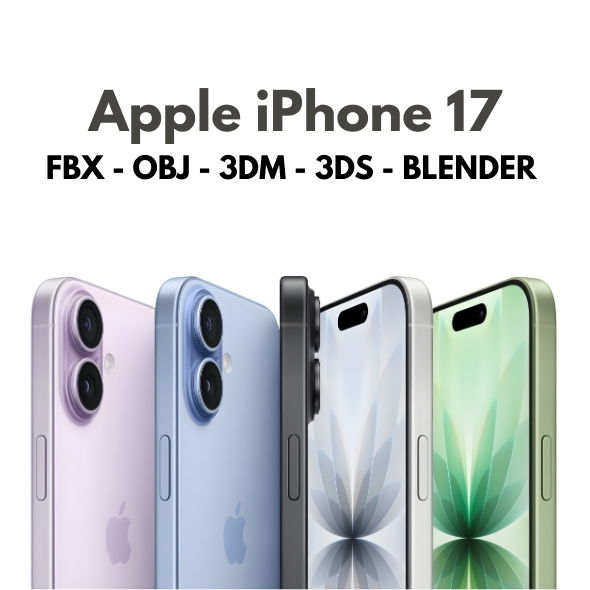
Start with the Correct Renderer
The iPhone 17 model includes materials built for both 3ds Max (V-Ray) and Blender (Cycles). Begin by selecting the renderer that matches your pipeline and check that all textures are linked correctly.
Material and Texture Setup
- Screen Options: 11 screen textures allow for multiple presentation variants.
- Detail Textures: Lenses, flashes, and grids add realism in close-up renders.
- Color Variants: White, Black, Green, Blue, and Purple are included for marketing variety.
Lighting Tips
Studio Lighting
Use a clean three-point setup to highlight edges and maintain consistent reflections across the metallic and glass surfaces.
HDRI for Reflections
HDRI environments can help create soft reflections on the body while preserving screen clarity.
Optimization and Clean Topology
The model uses clean polygonal geometry with quads and tris. This makes it safe for subdivision, smooth shading, and close-up product shots.
Get the Model
See the full specs and interactive preview on our Apple iPhone 17 3D Model page.
Buy it on 3D Ocean or browse the 3D Models collection.
Conclusion
By leveraging the ready-made V-Ray and Cycles materials along with the multiple texture sets, you can produce high-end iPhone 17 renders quickly and consistently across different pipelines.
Leave a Reply