Introduction
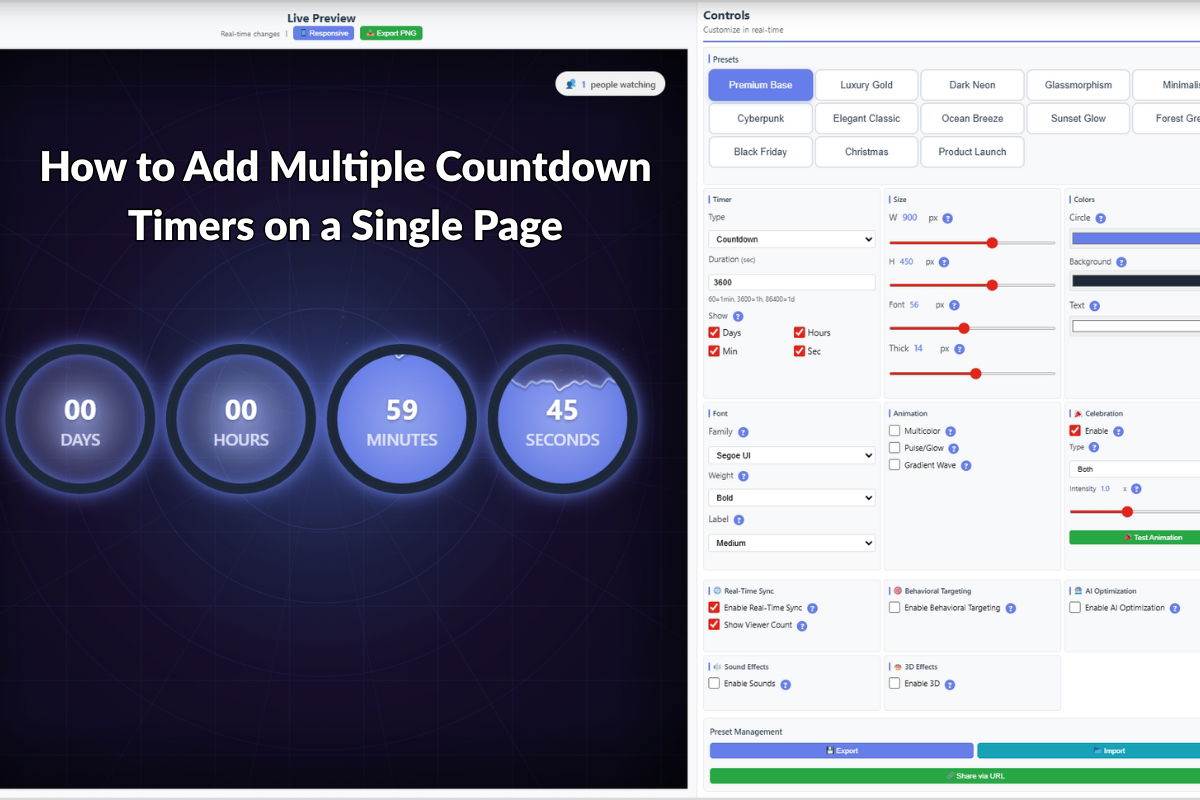
Countdown Timer Pro allows you to display multiple timer instances on the same page, each with its own target date, styling, and configuration. This is perfect for showcasing multiple promotions, events, or deadlines simultaneously. This guide will show you how to implement multiple timers effectively.
Basic Multiple Timer Setup
HTML Structure
Create separate container elements for each timer:
<div id="timer-promo-sale"></div>
<div id="timer-new-product"></div>
<div id="timer-seasonal-event"></div>
Initializing Multiple Timers
Initialize each timer with a unique ID and configuration:
// First timer - Sale promotion
CountdownTimerPro.init({
  containerId: 'timer-promo-sale',
  targetDate: '2025-12-25T23:59:59',
  labels: {
    days: 'Days',
    hours: 'Hours',
    minutes: 'Minutes',
    seconds: 'Seconds'
  }
});

// Second timer - New product launch
CountdownTimerPro.init({
  containerId: 'timer-new-product',
  targetDate: '2025-12-31T23:59:59',
  labels: {
    days: 'Days',
    hours: 'Hours',
    minutes: 'Minutes',
    seconds: 'Seconds'
  }
});

// Third timer - Seasonal event
CountdownTimerPro.init({
  containerId: 'timer-seasonal-event',
  targetDate: '2026-01-15T12:00:00',
  labels: {
    days: 'Days',
    hours: 'Hours',
    minutes: 'Minutes',
    seconds: 'Seconds'
  }
});
Different Styles for Each Timer
Apply unique styles to each timer instance:
<style>
/* Sale timer - Red theme */
#timer-promo-sale {
  background: linear-gradient(135deg, #ff6b6b 0%, #ee5a6f 100%);
  color: white;
  padding: 30px;
  border-radius: 15px;
  text-align: center;
}

/* New product timer - Blue theme */
#timer-new-product {
  background: linear-gradient(135deg, #4ecdc4 0%, #44a08d 100%);
  color: white;
  padding: 30px;
  border-radius: 15px;
  text-align: center;
}

/* Seasonal event timer - Green theme */
#timer-seasonal-event {
  background: linear-gradient(135deg, #a8edea 0%, #fed6e3 100%);
  color: #333;
  padding: 30px;
  border-radius: 15px;
  text-align: center;
}
</style>
Organizing Multiple Timers on a Page
Grid Layout
Display timers in a responsive grid:
<style>
.timers-grid {
  display: grid;
  grid-template-columns: repeat(auto-fit, minmax(300px, 1fr));
  gap: 20px;
  padding: 20px;
}

.timer-container {
  background: #ffffff;
  border: 2px solid #e0e0e0;
  border-radius: 12px;
  padding: 25px;
  box-shadow: 0 4px 6px rgba(0, 0, 0, 0.1);
}

.timer-title {
  font-size: 24px;
  font-weight: bold;
  margin-bottom: 15px;
  text-align: center;
}
</style>

<div class="timers-grid">
  <div class="timer-container">
    <h3 class="timer-title">Holiday Sale Ends In</h3>
    <div id="timer-promo-sale"></div>
  </div>

  <div class="timer-container">
    <h3 class="timer-title">New Product Launch In</h3>
    <div id="timer-new-product"></div>
  </div>

  <div class="timer-container">
    <h3 class="timer-title">Seasonal Event Starts In</h3>
    <div id="timer-seasonal-event"></div>
  </div>
</div>
Tabbed Interface
Display timers in tabs to save space:
<div class="timer-tabs">
  <button class="tab-button active" onclick="showTimer('sale')">Sale</button>
  <button class="tab-button" onclick="showTimer('product')">New Product</button>
  <button class="tab-button" onclick="showTimer('event")>Event</button>
</div>

<div id="timer-sale-panel" class="timer-panel active">
  <div id="timer-promo-sale"></div>
</div>

<div id="timer-product-panel" class="timer-panel">
  <div id="timer-new-product"></div>
</div>

<div id="timer-event-panel" class="timer-panel">
  <div id="timer-seasonal-event"></div>
</div>
Different Configurations Per Timer
Each timer can have unique settings:
// Compact timer for sidebar
CountdownTimerPro.init({
  containerId: 'timer-compact',
  targetDate: '2025-12-31T23:59:59',
  format: 'compact', // Shows only days and hours
  size: 'small'
});

// Full timer for main content
CountdownTimerPro.init({
  containerId: 'timer-full',
  targetDate: '2025-12-31T23:59:59',
  format: 'full', // Shows all units
  size: 'large',
  showLabels: true
});

// Minimal timer for header
CountdownTimerPro.init({
  containerId: 'timer-minimal',
  targetDate: '2025-12-31T23:59:59',
  format: 'minimal', // Just numbers, no labels
  size: 'medium'
});
Conditional Display
Show or hide timers based on conditions:
// Only show timer if target date is in the future
function initConditionalTimer(containerId, targetDate) {
  const target = new Date(targetDate);
  const now = new Date();

  if (target > now) {
    CountdownTimerPro.init({
      containerId: containerId,
      targetDate: targetDate
    });
    document.getElementById(containerId).parentElement.style.display = 'block';
  } else {
    document.getElementById(containerId).parentElement.style.display = 'none';
  }
}

// Initialize timers conditionally
initConditionalTimer('timer-promo-sale', '2025-12-25T23:59:59');
initConditionalTimer('timer-new-product', '2025-12-31T23:59:59');
initConditionalTimer('timer-seasonal-event', '2026-01-15T12:00:00');
Performance Optimization
Lazy Loading
Load timers only when needed:
// Load timer when element enters viewport
const observer = new IntersectionObserver((entries) => {
  entries.forEach(entry => {
    if (entry.isIntersecting) {
      const containerId = entry.target.id;
      if (!entry.target.dataset.initialized) {
        CountdownTimerPro.init({
          containerId: containerId,
          targetDate: entry.target.dataset.targetDate
        });
        entry.target.dataset.initialized = 'true';
      }
    }
  });
});

// Observe all timer containers
document.querySelectorAll('.timer-container').forEach(container => {
  observer.observe(container);
});
Best Practices
- Unique IDs: Always use unique container IDs for each timer
- Clear Labels: Use descriptive titles so users understand what each timer represents
- Visual Distinction: Use different colors/styles to differentiate timers
- Performance: Limit the number of active timers (3-5 is usually optimal)
- Mobile Responsiveness: Ensure timers stack or resize properly on mobile devices
- Testing: Test all timers to ensure they count down correctly
Common Use Cases
- E-commerce Homepage: Flash sale timer, new arrival timer, clearance timer
- Event Landing Pages: Registration deadline, event start time, early bird offer
- Product Pages: Limited-time discount, pre-order deadline, launch date
- Campaign Pages: Multiple promotion deadlines, milestone countdowns
Troubleshooting
Timers Not Displaying
- Verify container IDs match between HTML and JavaScript
- Check that target dates are in the correct format
- Ensure Countdown Timer Pro script is loaded before initialization
Performance Issues
- Limit the number of simultaneous timers
- Use lazy loading for timers below the fold
- Consider using requestAnimationFrame for smoother updates
Conclusion
Multiple countdown timers can effectively showcase various promotions and events on a single page. By using unique IDs, distinct styling, and proper organization, you can create engaging pages that highlight multiple time-sensitive offers. Remember to optimize for performance and ensure a great user experience across all devices.
Leave a Reply