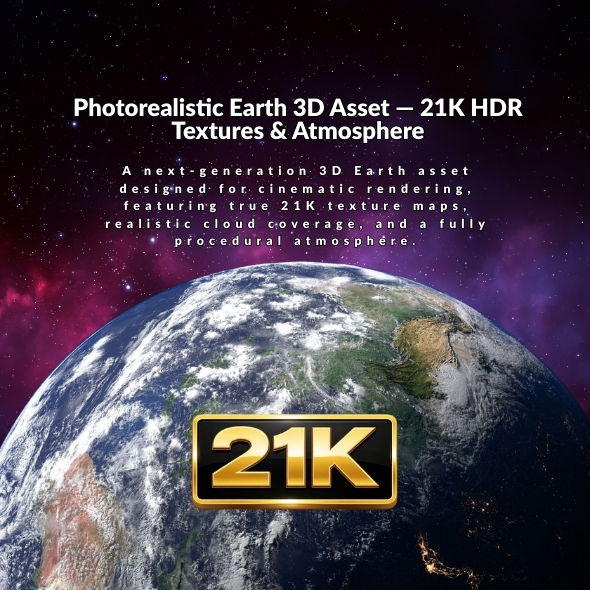
Understanding the 21K Texture Workflow
Working with the Ultra-Realistic 3D Earth Model requires understanding how to leverage its 21K textures and atmospheric effects effectively. This guide covers the complete workflow from import to final render, ensuring you achieve stunning results in your projects.
Importing and Setup
Blender Import
For Blender users, the native .blend file includes:
- Full shading setup with all materials
- Organized collections for Earth, clouds, and atmosphere
- Clear naming conventions for easy navigation
- Optimized scene structure
Other Software Import
For Cinema 4D, Maya, 3ds Max, or other software:
- Import FBX or OBJ files
- Ensure texture paths are correctly linked
- Set up materials using the texture maps provided
- Configure atmosphere layers if supported
Material and Texture Setup
Earth Surface Material
The Earth surface uses 21K albedo textures:
- Base Color: Load the albedo texture for surface color
- Displacement: Use the displacement map for surface detail
- Normal/Bump: Enhance surface detail with normal maps if available
- Roughness: Adjust based on land vs. water areas
Cloud Layer Material
For the cloud coverage layer:
- Use semi-transparent materials for realistic cloud appearance
- Apply cloud texture maps to opacity and color channels
- Adjust cloud density and coverage to match your scene
- Enable volumetric effects if your renderer supports it
Night Lights Setup
For city night lights:
- Use emission shader or glow effect for night lights
- Adjust emission intensity based on camera distance
- Combine with night lights texture map
- Control visibility based on day/night cycles
Atmospheric Effects Configuration
Atmosphere Mesh Setup
The dedicated atmosphere mesh provides realistic horizon glow:
- Position the atmosphere mesh around the Earth
- Configure scattering settings for realistic light behavior
- Adjust atmosphere thickness for desired glow intensity
- Enable volumetric scattering if available
Horizon Glow
To achieve realistic horizon glow:
- Use the atmosphere mesh’s material properties
- Enable emission or volumetric scattering
- Adjust color and intensity to match real atmospheric glow
- Test with different camera angles for optimal effect
Lighting Techniques
Sun Lighting Setup
For realistic Earth lighting:
- Use a single strong sun light source
- Position the sun to create realistic day/night terminator
- Adjust sun intensity based on desired exposure
- Use area lights or HDRI for additional fill lighting
Day/Night Cycles
Creating day and night transitions:
- Animate sun position for day/night cycles
- Adjust night lights emission based on sun position
- Control cloud visibility and color for different times
- Use color grading to enhance day/night atmosphere
Space Lighting
For space scenes:
- Use minimal ambient lighting to maintain space darkness
- Emphasize the sun’s direct illumination
- Add subtle rim lighting to separate Earth from space
- Consider starfield backgrounds for context
Camera and Composition
Orbital Shots
For orbital camera movements:
- Use wide focal lengths (24-35mm) for context
- Animate camera in circular orbits around Earth
- Maintain consistent distance for smooth motion
- Consider camera shake for handheld documentary style
Close-Up Renders
For detailed surface shots:
- Use longer focal lengths (50-85mm) to avoid distortion
- Focus on specific regions to showcase texture detail
- Enable depth of field for selective focus
- Use appropriate subdivision levels for close-ups
Slow Rotations
For rotating Earth shots:
- Animate Earth rotation smoothly (360 degrees over 10-20 seconds)
- Keep camera stationary or add subtle parallax
- Ensure consistent lighting throughout rotation
- Test animation timing for natural movement
Rendering Settings
Blender Cycles
For Cycles rendering:
- Set samples to 256-512 for final renders
- Enable Denoising for cleaner results
- Use Filmic color management for realistic colors
- Enable Caustics for realistic light behavior
- Adjust Light Tree for optimal sampling
Performance Optimization
To balance quality and render time:
- Use Simplify enabled during viewport work
- Increase subdivision only for final renders
- Lower texture resolution for distant shots
- Use adaptive sampling for efficient rendering
- Render in passes for compositing flexibility
Post-Processing and Compositing
Color Grading
Enhance your renders in post:
- Adjust contrast and brightness for cinematic look
- Use color grading to match your project’s aesthetic
- Enhance atmospheric glow in post if needed
- Add subtle lens effects for realism
Atmosphere Enhancement
To enhance atmospheric effects:
- Add glow effects to horizon in compositing
- Use color correction for day/night transitions
- Enhance cloud contrast and detail
- Add subtle lens flares for sun interactions
Common Challenges and Solutions
Texture Resolution
If textures appear blurry:
- Verify texture paths are correctly linked
- Check that 21K textures are actually loaded
- Increase texture interpolation settings
- Ensure appropriate subdivision levels
Atmosphere Not Visible
If atmospheric effects don’t appear:
- Check that atmosphere mesh is enabled and visible
- Verify material settings for emission/scattering
- Adjust camera angle to see horizon glow
- Test with different render settings
Performance Issues
If viewport is slow:
- Enable Simplify in Render settings
- Reduce viewport subdivision levels
- Lower texture resolution for viewport
- Hide atmosphere or clouds during setup
Advanced Techniques
Multi-Pass Rendering
Render in passes for maximum control:
- Separate Earth, clouds, and atmosphere passes
- Render shadow and reflection passes separately
- Composite in post for flexible adjustments
- Add depth passes for depth-of-field effects
Animation Workflows
For animated sequences:
- Pre-render texture variations for efficiency
- Use proxy objects during animation preview
- Render at lower resolution for previews
- Optimize keyframe spacing for smooth motion
Resources and Support
Get started with the Ultra-Realistic 3D Earth Model by visiting our product page. Watch the preview video and download the model in your preferred format.
You can purchase the model directly on 3D Ocean or explore our complete 3D Models collection.
Conclusion
Mastering the workflow for the Ultra-Realistic 3D Earth Model opens up endless possibilities for cinematic rendering, scientific visualization, and space-themed motion graphics. By understanding texture setup, atmospheric effects, lighting techniques, and rendering optimization, you can create stunning Earth visualizations that captivate audiences and enhance your creative projects.