Author: gipegimiso9993

  • How to Implement Geographic-Based Script Loading with JavaScript Activator

    How to Implement Geographic-Based Script Loading with JavaScript Activator

    Introduction

    Geographic-based script loading allows you to personalize your website experience based on user location. This can include loading region-specific functionality, compliance scripts for certain countries, or localized features. JavaScript Activator makes it easy to implement geographic-based conditional script loading. This guide will show you how.

    Understanding Geographic Script Loading

    Geographic script loading enables:

    • Region-specific functionality (e.g., different payment methods by country)
    • Compliance scripts (e.g., GDPR for EU, CCPA for California)
    • Localized features (e.g., currency converters, language selectors)
    • Performance optimization (e.g., loading CDN scripts from nearest region)
    • Legal requirements (e.g., cookie consent based on jurisdiction)

    Detecting User Location

    Method 1: IP-Based Geolocation

    Use a geolocation service to detect user country:

    async function getUserCountry() {
      try {
        // Using a free geolocation API
        const response = await fetch('https://ipapi.co/json/');
        const data = await response.json();
        return data.country_code; // Returns ISO country code (e.g., 'US', 'GB', 'DE')
      } catch (error) {
        console.error('Geolocation error:', error);
        return 'US'; // Default fallback
      }
    }
    
    // Use the country code
    const userCountry = await getUserCountry();
    console.log('User country:', userCountry);

    Method 2: Browser Timezone Detection

    Use timezone as a proxy for location (less accurate but faster):

    function getCountryFromTimezone() {
      const timezone = Intl.DateTimeFormat().resolvedOptions().timeZone;
      
      // Map timezones to countries (simplified example)
      const timezoneMap = {
        'America/New_York': 'US',
        'America/Los_Angeles': 'US',
        'Europe/London': 'GB',
        'Europe/Paris': 'FR',
        'Europe/Berlin': 'DE',
        'Asia/Tokyo': 'JP',
        // Add more mappings as needed
      };
      
      return timezoneMap[timezone] || 'US';
    }

    Method 3: Server-Side Detection

    For more reliable detection, use server-side geolocation:

    // Server sets data attribute
    <body data-user-country="US">
    
    // JavaScript reads it
    const userCountry = document.body.dataset.userCountry || 'US';

    Conditional Script Loading by Country

    Basic Country-Based Loading

    Load different scripts based on detected country:

    async function loadGeographicScripts() {
      const country = await getUserCountry();
      
      // EU countries - load GDPR compliance script
      const euCountries = ['AT', 'BE', 'BG', 'CY', 'CZ', 'DE', 'DK', 'EE', 'ES', 'FI', 'FR', 'GR', 'HR', 'HU', 'IE', 'IT', 'LT', 'LU', 'LV', 'MT', 'NL', 'PL', 'PT', 'RO', 'SE', 'SI', 'SK'];
      
      if (euCountries.includes(country)) {
        JavaScriptActivator.load({
          script: 'https://example.com/gdpr-compliance.js',
          condition: () => true
        });
      }
      
      // US - California - load CCPA script
      if (country === 'US') {
        // You might need additional state detection for CCPA
        JavaScriptActivator.load({
          script: 'https://example.com/ccpa-compliance.js',
          condition: () => true
        });
      }
      
      // UK-specific features
      if (country === 'GB') {
        JavaScriptActivator.load({
          script: 'https://example.com/uk-features.js',
          condition: () => true
        });
      }
    }

    Region-Based Loading

    Group countries into regions for easier management:

    function getRegion(country) {
      const regions = {
        'EU': ['AT', 'BE', 'BG', 'CY', 'CZ', 'DE', 'DK', 'EE', 'ES', 'FI', 'FR', 'GR', 'HR', 'HU', 'IE', 'IT', 'LT', 'LU', 'LV', 'MT', 'NL', 'PL', 'PT', 'RO', 'SE', 'SI', 'SK'],
        'NA': ['US', 'CA', 'MX'],
        'APAC': ['AU', 'NZ', 'JP', 'KR', 'CN', 'IN', 'SG'],
        'LATAM': ['BR', 'AR', 'CL', 'CO', 'PE'],
      };
      
      for (const [region, countries] of Object.entries(regions)) {
        if (countries.includes(country)) {
          return region;
        }
      }
      
      return 'OTHER';
    }
    
    async function loadRegionalScripts() {
      const country = await getUserCountry();
      const region = getRegion(country);
      
      switch(region) {
        case 'EU':
          JavaScriptActivator.load({ script: 'eu-region.js' });
          break;
        case 'NA':
          JavaScriptActivator.load({ script: 'na-region.js' });
          break;
        case 'APAC':
          JavaScriptActivator.load({ script: 'apac-region.js' });
          break;
        default:
          JavaScriptActivator.load({ script: 'default-region.js' });
      }
    }

    Compliance Scripts

    GDPR Compliance (EU)

    Load GDPR compliance scripts for European users:

    async function loadGDPRCompliance() {
      const country = await getUserCountry();
      const euCountries = ['AT', 'BE', 'BG', 'CY', 'CZ', 'DE', 'DK', 'EE', 'ES', 'FI', 'FR', 'GR', 'HR', 'HU', 'IE', 'IT', 'LT', 'LU', 'LV', 'MT', 'NL', 'PL', 'PT', 'RO', 'SE', 'SI', 'SK'];
      
      if (euCountries.includes(country)) {
        JavaScriptActivator.load({
          script: 'https://cdn.example.com/gdpr-consent.js',
          condition: () => true,
          onLoad: () => {
            // Initialize GDPR consent manager
            if (typeof GDPRConsent !== 'undefined') {
              GDPRConsent.init();
            }
          }
        });
      }
    }

    Performance Optimization

    CDN Selection by Region

    Load scripts from the nearest CDN location:

    function getCDNUrl(country) {
      const cdnMap = {
        'US': 'https://cdn-us.example.com/script.js',
        'GB': 'https://cdn-eu.example.com/script.js',
        'DE': 'https://cdn-eu.example.com/script.js',
        'JP': 'https://cdn-asia.example.com/script.js',
        'AU': 'https://cdn-asia.example.com/script.js',
      };
      
      return cdnMap[country] || 'https://cdn-default.example.com/script.js';
    }
    
    async function loadOptimizedScript() {
      const country = await getUserCountry();
      const cdnUrl = getCDNUrl(country);
      
      JavaScriptActivator.load({
        script: cdnUrl,
        condition: () => true
      });
    }

    Caching User Location

    Cache location to avoid repeated API calls:

    async function getCachedUserCountry() {
      // Check cache first
      const cached = sessionStorage.getItem('user_country');
      if (cached) {
        return cached;
      }
      
      // Fetch if not cached
      const country = await getUserCountry();
      sessionStorage.setItem('user_country', country);
      return country;
    }

    Fallback Handling

    Always provide fallbacks for when location detection fails:

    async function loadScriptsWithFallback() {
      let country;
      
      try {
        country = await getUserCountry();
      } catch (error) {
        console.warn('Geolocation failed, using default');
        country = 'US'; // Default fallback
      }
      
      // Load scripts based on detected or default country
      if (country === 'EU_REGION') {
        JavaScriptActivator.load({ script: 'eu-script.js' });
      } else {
        JavaScriptActivator.load({ script: 'default-script.js' });
      }
    }

    Best Practices

    • Privacy Compliance: Only detect location if necessary and with user consent where required
    • Performance: Cache location data to avoid repeated API calls
    • Fallbacks: Always provide default behavior when location detection fails
    • Accuracy: Use appropriate detection method (IP for country, timezone for timezone-based features)
    • User Control: Allow users to override location-based features when appropriate
    • Documentation: Document which countries/regions trigger which scripts

    Common Use Cases

    • GDPR Cookie Consent: Load consent manager only for EU users
    • Regional Payment Methods: Load payment integrations based on country
    • Language Selectors: Load language switcher for multilingual regions
    • Currency Converters: Load currency features for international users
    • Shipping Calculators: Load region-specific shipping calculation scripts
    • Tax Calculators: Load tax calculation scripts based on location

    Conclusion

    Geographic-based script loading enables personalized experiences and ensures compliance with regional regulations. By using JavaScript Activator with geolocation detection, you can conditionally load scripts based on user location while maintaining good performance and user experience. Always implement proper fallbacks and respect user privacy when implementing location-based features.

  • How to Use JavaScript Activator for A/B Testing

    How to Use JavaScript Activator for A/B Testing

    Introduction

    JavaScript Activator is a powerful tool for implementing A/B testing by conditionally loading different JavaScript files based on user segments. This approach allows you to test different versions of functionality, track performance, and make data-driven decisions. This guide will show you how to set up A/B testing scenarios using JavaScript Activator.

    Understanding A/B Testing with JavaScript Activator

    A/B testing involves showing different versions of your website to different users and measuring which performs better. JavaScript Activator enables this by:

    • Loading different scripts for different user segments
    • Conditionally executing code based on user groups
    • Maintaining test groups consistently across sessions
    • Allowing easy tracking and measurement

    Basic A/B Test Setup

    Step 1: Create Test Groups

    First, define how users will be assigned to test groups:

    // Simple 50/50 split
    function getABTestGroup() {
      // Use a cookie or localStorage to maintain consistency
      if (localStorage.getItem('ab_test_group')) {
        return localStorage.getItem('ab_test_group');
      }
      
      // Assign new users randomly
      const group = Math.random() < 0.5 ? 'A' : 'B';
      localStorage.setItem('ab_test_group', group);
      return group;
    }

    Step 2: Load Different Scripts Based on Group

    Use JavaScript Activator to load different scripts:

    const testGroup = getABTestGroup();
    
    if (testGroup === 'A') {
      // Load version A script
      JavaScriptActivator.load({
        script: 'https://example.com/version-a.js',
        condition: () => true
      });
    } else {
      // Load version B script
      JavaScriptActivator.load({
        script: 'https://example.com/version-b.js',
        condition: () => true
      });
    }

    Advanced A/B Testing Scenarios

    Multiple Variants

    Test more than two variants:

    function getMultiVariantGroup() {
      if (localStorage.getItem('ab_variant')) {
        return localStorage.getItem('ab_variant');
      }
      
      const random = Math.random();
      let variant;
      
      if (random < 0.33) {
        variant = 'control';
      } else if (random < 0.66) {
        variant = 'variant1';
      } else {
        variant = 'variant2';
      }
      
      localStorage.setItem('ab_variant', variant);
      return variant;
    }
    
    const variant = getMultiVariantGroup();
    
    switch(variant) {
      case 'control':
        JavaScriptActivator.load({ script: 'control-version.js' });
        break;
      case 'variant1':
        JavaScriptActivator.load({ script: 'variant-1.js' });
        break;
      case 'variant2':
        JavaScriptActivator.load({ script: 'variant-2.js' });
        break;
    }

    Weighted Distribution

    Assign users unevenly to test groups:

    function getWeightedGroup() {
      if (localStorage.getItem('ab_group')) {
        return localStorage.getItem('ab_group');
      }
      
      const random = Math.random();
      let group;
      
      // 70% to group A, 30% to group B
      if (random < 0.7) {
        group = 'A';
      } else {
        group = 'B';
      }
      
      localStorage.setItem('ab_group', group);
      return group;
    }

    Tracking and Analytics

    Logging Test Events

    Track which version users see and their interactions:

    const testGroup = getABTestGroup();
    
    // Log assignment
    console.log('AB Test Group:', testGroup);
    if (typeof gtag !== 'undefined') {
      gtag('event', 'ab_test_assignment', {
        'test_name': 'checkout_flow',
        'variant': testGroup
      });
    }
    
    // Load appropriate script
    if (testGroup === 'A') {
      JavaScriptActivator.load({
        script: 'version-a.js',
        onLoad: () => {
          // Track that version A loaded
          trackEvent('ab_test_version_loaded', { variant: 'A' });
        }
      });
    } else {
      JavaScriptActivator.load({
        script: 'version-b.js',
        onLoad: () => {
          // Track that version B loaded
          trackEvent('ab_test_version_loaded', { variant: 'B' });
        }
      });
    }

    Conversion Tracking

    Track conversions for each variant:

    function trackConversion(eventName) {
      const testGroup = localStorage.getItem('ab_test_group');
      
      // Send to analytics
      if (typeof gtag !== 'undefined') {
        gtag('event', eventName, {
          'ab_test_group': testGroup,
          'test_name': 'checkout_optimization'
        });
      }
      
      // Or send to custom analytics
      fetch('/api/track-conversion', {
        method: 'POST',
        headers: { 'Content-Type': 'application/json' },
        body: JSON.stringify({
          event: eventName,
          group: testGroup,
          timestamp: new Date().toISOString()
        })
      });
    }
    
    // Track when user completes checkout
    document.addEventListener('checkoutComplete', () => {
      trackConversion('checkout_completed');
    });

    Conditional Feature Testing

    Testing New Features

    Test new features with a subset of users:

    function shouldShowNewFeature() {
      const testGroup = getABTestGroup();
      return testGroup === 'B'; // Only show to group B
    }
    
    if (shouldShowNewFeature()) {
      JavaScriptActivator.load({
        script: 'new-feature.js',
        condition: () => true
      });
    } else {
      // Load standard version or nothing
      JavaScriptActivator.load({
        script: 'standard-feature.js',
        condition: () => true
      });
    }

    Server-Side Assignment

    For more reliable assignment, use server-side logic:

    // Server returns test group in page HTML
    const serverAssignedGroup = document.body.dataset.abGroup;
    
    if (serverAssignedGroup === 'A') {
      JavaScriptActivator.load({ script: 'version-a.js' });
    } else if (serverAssignedGroup === 'B') {
      JavaScriptActivator.load({ script: 'version-b.js' });
    }

    Best Practices

    • Maintain Consistency: Use cookies or localStorage to keep users in the same group across sessions
    • Test Duration: Run tests long enough to collect statistically significant data
    • Sample Size: Ensure you have enough users in each group for valid results
    • Clear Objectives: Define success metrics before starting the test
    • Documentation: Document which tests are running and their configurations
    • Clean Up: Remove test code after the test is complete and a winner is determined

    Common A/B Testing Use Cases

    • Checkout Flow: Test different checkout processes
    • Call-to-Action Buttons: Test different CTA text, colors, and placements
    • Product Recommendations: Test different recommendation algorithms
    • Form Designs: Test different form layouts and fields
    • Pricing Displays: Test different ways of showing prices
    • Navigation Menus: Test different menu structures

    Troubleshooting

    Users Seeing Wrong Version

    • Check localStorage/cookie persistence
    • Verify group assignment logic
    • Clear cache and test again

    Inconsistent Results

    • Ensure script loading is reliable
    • Check for race conditions in script loading
    • Verify tracking is working correctly

    Conclusion

    JavaScript Activator provides a flexible foundation for implementing A/B tests. By conditionally loading different scripts based on user groups, you can test various features and functionality while maintaining consistent user experiences. Remember to track results properly, maintain user group consistency, and analyze data to make informed decisions about which versions perform better.

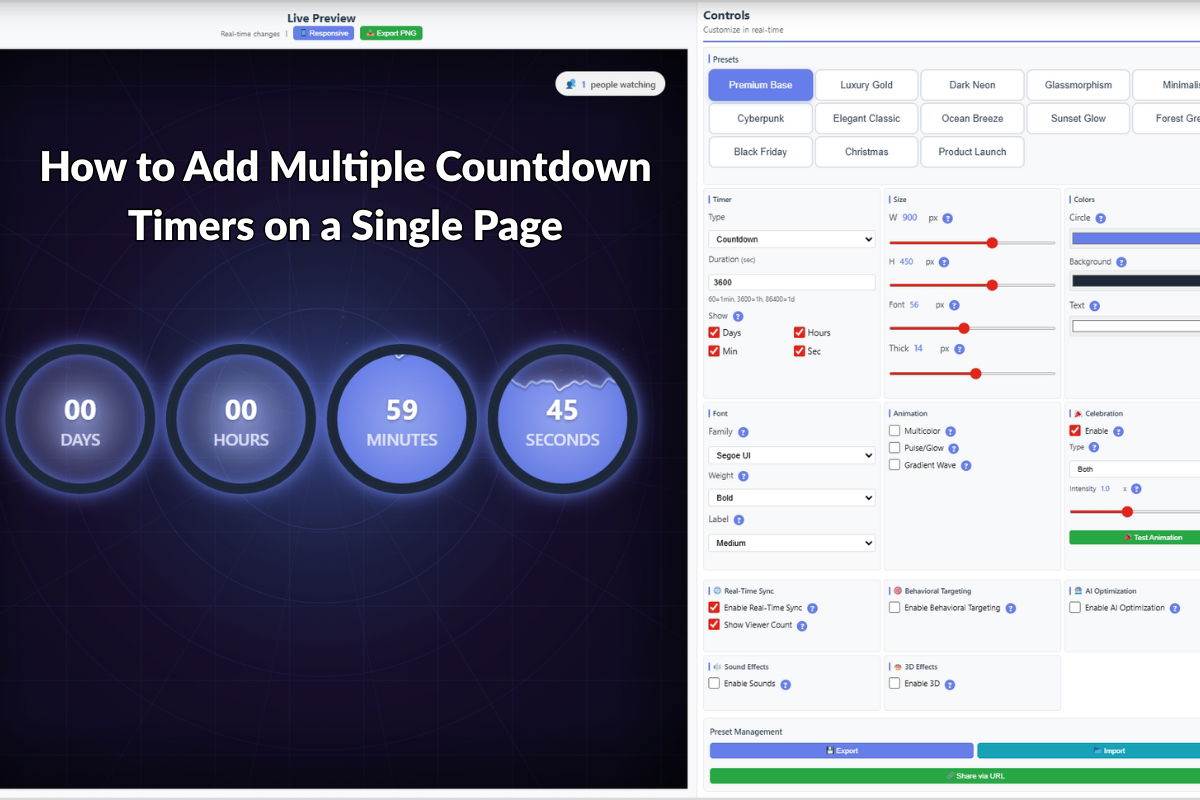
  • How to Add Multiple Countdown Timers on a Single Page

    How to Add Multiple Countdown Timers on a Single Page

    Introduction

    Countdown Timer Pro allows you to display multiple timer instances on the same page, each with its own target date, styling, and configuration. This is perfect for showcasing multiple promotions, events, or deadlines simultaneously. This guide will show you how to implement multiple timers effectively.

    Basic Multiple Timer Setup

    HTML Structure

    Create separate container elements for each timer:

    <div id="timer-promo-sale"></div>
    <div id="timer-new-product"></div>
    <div id="timer-seasonal-event"></div>

    Initializing Multiple Timers

    Initialize each timer with a unique ID and configuration:

    // First timer - Sale promotion
    CountdownTimerPro.init({
      containerId: 'timer-promo-sale',
      targetDate: '2025-12-25T23:59:59',
      labels: {
        days: 'Days',
        hours: 'Hours',
        minutes: 'Minutes',
        seconds: 'Seconds'
      }
    });
    
    // Second timer - New product launch
    CountdownTimerPro.init({
      containerId: 'timer-new-product',
      targetDate: '2025-12-31T23:59:59',
      labels: {
        days: 'Days',
        hours: 'Hours',
        minutes: 'Minutes',
        seconds: 'Seconds'
      }
    });
    
    // Third timer - Seasonal event
    CountdownTimerPro.init({
      containerId: 'timer-seasonal-event',
      targetDate: '2026-01-15T12:00:00',
      labels: {
        days: 'Days',
        hours: 'Hours',
        minutes: 'Minutes',
        seconds: 'Seconds'
      }
    });

    Different Styles for Each Timer

    Apply unique styles to each timer instance:

    <style>
    /* Sale timer - Red theme */
    #timer-promo-sale {
      background: linear-gradient(135deg, #ff6b6b 0%, #ee5a6f 100%);
      color: white;
      padding: 30px;
      border-radius: 15px;
      text-align: center;
    }
    
    /* New product timer - Blue theme */
    #timer-new-product {
      background: linear-gradient(135deg, #4ecdc4 0%, #44a08d 100%);
      color: white;
      padding: 30px;
      border-radius: 15px;
      text-align: center;
    }
    
    /* Seasonal event timer - Green theme */
    #timer-seasonal-event {
      background: linear-gradient(135deg, #a8edea 0%, #fed6e3 100%);
      color: #333;
      padding: 30px;
      border-radius: 15px;
      text-align: center;
    }
    </style>

    Organizing Multiple Timers on a Page

    Grid Layout

    Display timers in a responsive grid:

    <style>
    .timers-grid {
      display: grid;
      grid-template-columns: repeat(auto-fit, minmax(300px, 1fr));
      gap: 20px;
      padding: 20px;
    }
    
    .timer-container {
      background: #ffffff;
      border: 2px solid #e0e0e0;
      border-radius: 12px;
      padding: 25px;
      box-shadow: 0 4px 6px rgba(0, 0, 0, 0.1);
    }
    
    .timer-title {
      font-size: 24px;
      font-weight: bold;
      margin-bottom: 15px;
      text-align: center;
    }
    </style>
    
    <div class="timers-grid">
      <div class="timer-container">
        <h3 class="timer-title">Holiday Sale Ends In</h3>
        <div id="timer-promo-sale"></div>
      </div>
      
      <div class="timer-container">
        <h3 class="timer-title">New Product Launch In</h3>
        <div id="timer-new-product"></div>
      </div>
      
      <div class="timer-container">
        <h3 class="timer-title">Seasonal Event Starts In</h3>
        <div id="timer-seasonal-event"></div>
      </div>
    </div>

    Tabbed Interface

    Display timers in tabs to save space:

    <div class="timer-tabs">
      <button class="tab-button active" onclick="showTimer('sale')">Sale</button>
      <button class="tab-button" onclick="showTimer('product')">New Product</button>
      <button class="tab-button" onclick="showTimer('event")>Event</button>
    </div>
    
    <div id="timer-sale-panel" class="timer-panel active">
      <div id="timer-promo-sale"></div>
    </div>
    
    <div id="timer-product-panel" class="timer-panel">
      <div id="timer-new-product"></div>
    </div>
    
    <div id="timer-event-panel" class="timer-panel">
      <div id="timer-seasonal-event"></div>
    </div>

    Different Configurations Per Timer

    Each timer can have unique settings:

    // Compact timer for sidebar
    CountdownTimerPro.init({
      containerId: 'timer-compact',
      targetDate: '2025-12-31T23:59:59',
      format: 'compact', // Shows only days and hours
      size: 'small'
    });
    
    // Full timer for main content
    CountdownTimerPro.init({
      containerId: 'timer-full',
      targetDate: '2025-12-31T23:59:59',
      format: 'full', // Shows all units
      size: 'large',
      showLabels: true
    });
    
    // Minimal timer for header
    CountdownTimerPro.init({
      containerId: 'timer-minimal',
      targetDate: '2025-12-31T23:59:59',
      format: 'minimal', // Just numbers, no labels
      size: 'medium'
    });

    Conditional Display

    Show or hide timers based on conditions:

    // Only show timer if target date is in the future
    function initConditionalTimer(containerId, targetDate) {
      const target = new Date(targetDate);
      const now = new Date();
      
      if (target > now) {
        CountdownTimerPro.init({
          containerId: containerId,
          targetDate: targetDate
        });
        document.getElementById(containerId).parentElement.style.display = 'block';
      } else {
        document.getElementById(containerId).parentElement.style.display = 'none';
      }
    }
    
    // Initialize timers conditionally
    initConditionalTimer('timer-promo-sale', '2025-12-25T23:59:59');
    initConditionalTimer('timer-new-product', '2025-12-31T23:59:59');
    initConditionalTimer('timer-seasonal-event', '2026-01-15T12:00:00');

    Performance Optimization

    Lazy Loading

    Load timers only when needed:

    // Load timer when element enters viewport
    const observer = new IntersectionObserver((entries) => {
      entries.forEach(entry => {
        if (entry.isIntersecting) {
          const containerId = entry.target.id;
          if (!entry.target.dataset.initialized) {
            CountdownTimerPro.init({
              containerId: containerId,
              targetDate: entry.target.dataset.targetDate
            });
            entry.target.dataset.initialized = 'true';
          }
        }
      });
    });
    
    // Observe all timer containers
    document.querySelectorAll('.timer-container').forEach(container => {
      observer.observe(container);
    });

    Best Practices

    • Unique IDs: Always use unique container IDs for each timer
    • Clear Labels: Use descriptive titles so users understand what each timer represents
    • Visual Distinction: Use different colors/styles to differentiate timers
    • Performance: Limit the number of active timers (3-5 is usually optimal)
    • Mobile Responsiveness: Ensure timers stack or resize properly on mobile devices
    • Testing: Test all timers to ensure they count down correctly

    Common Use Cases

    • E-commerce Homepage: Flash sale timer, new arrival timer, clearance timer
    • Event Landing Pages: Registration deadline, event start time, early bird offer
    • Product Pages: Limited-time discount, pre-order deadline, launch date
    • Campaign Pages: Multiple promotion deadlines, milestone countdowns

    Troubleshooting

    Timers Not Displaying

    • Verify container IDs match between HTML and JavaScript
    • Check that target dates are in the correct format
    • Ensure Countdown Timer Pro script is loaded before initialization

    Performance Issues

    • Limit the number of simultaneous timers
    • Use lazy loading for timers below the fold
    • Consider using requestAnimationFrame for smoother updates

    Conclusion

    Multiple countdown timers can effectively showcase various promotions and events on a single page. By using unique IDs, distinct styling, and proper organization, you can create engaging pages that highlight multiple time-sensitive offers. Remember to optimize for performance and ensure a great user experience across all devices.

  • How to Customize Countdown Timer Pro Styles and Colors

    How to Customize Countdown Timer Pro Styles and Colors

    Introduction

    Countdown Timer Pro offers extensive customization options to match your website’s design perfectly. This guide will show you how to customize colors, fonts, sizes, and styles to create a countdown timer that seamlessly integrates with your brand identity.

    Basic Color Customization

    Using CSS Custom Properties

    Countdown Timer Pro supports CSS custom properties (variables) for easy color customization. Here’s how to use them:

    .countdown-timer-pro {
      --timer-bg-color: #ffffff;
      --timer-text-color: #333333;
      --timer-border-color: #e0e0e0;
      --timer-accent-color: #0073aa;
      --timer-separator-color: #cccccc;
    }

    Setting Colors via JavaScript Options

    You can also set colors directly in the initialization options:

    CountdownTimerPro.init({
      targetDate: '2025-12-31T23:59:59',
      colors: {
        background: '#ffffff',
        text: '#333333',
        accent: '#0073aa',
        border: '#e0e0e0'
      }
    });

    Font Customization

    Changing Font Family

    Customize the timer font to match your website:

    .countdown-timer-pro {
      font-family: 'Your Font', Arial, sans-serif;
    }
    
    .countdown-timer-pro .timer-unit {
      font-family: 'Your Number Font', monospace;
    }

    Adjusting Font Size

    Control the size of timer elements:

    .countdown-timer-pro .timer-value {
      font-size: 48px;
      font-weight: bold;
    }
    
    .countdown-timer-pro .timer-label {
      font-size: 14px;
      font-weight: normal;
    }

    Layout Customization

    Changing Display Style

    Countdown Timer Pro supports multiple layout styles:

    • Horizontal: Units displayed in a row
    • Vertical: Units stacked vertically
    • Compact: Minimal space layout
    • Spacious: More breathing room between units
    CountdownTimerPro.init({
      targetDate: '2025-12-31T23:59:59',
      layout: 'horizontal', // or 'vertical', 'compact', 'spacious'
      spacing: 20 // pixels between units
    });

    Border and Shadow Effects

    Add visual depth to your timer:

    .countdown-timer-pro .timer-unit {
      border: 2px solid #e0e0e0;
      border-radius: 8px;
      box-shadow: 0 2px 8px rgba(0, 0, 0, 0.1);
      padding: 15px;
      background: #ffffff;
    }

    Advanced Styling Techniques

    Gradient Backgrounds

    Create eye-catching gradient backgrounds:

    .countdown-timer-pro .timer-unit {
      background: linear-gradient(135deg, #667eea 0%, #764ba2 100%);
      color: #ffffff;
    }

    Animated Transitions

    Add smooth transitions when values change:

    .countdown-timer-pro .timer-value {
      transition: all 0.3s ease;
    }
    
    .countdown-timer-pro .timer-value.updating {
      transform: scale(1.1);
      color: #ff6b6b;
    }

    Custom Separators

    Customize the separator between time units:

    .countdown-timer-pro .timer-separator {
      content: ':';
      color: #999999;
      font-size: 24px;
      margin: 0 10px;
    }

    Or use custom content:

    .countdown-timer-pro .timer-separator::after {
      content: '|';
    }

    Responsive Design

    Mobile Optimization

    Ensure your timer looks great on all devices:

    /* Desktop styles */
    .countdown-timer-pro .timer-value {
      font-size: 48px;
    }
    
    /* Tablet styles */
    @media (max-width: 768px) {
      .countdown-timer-pro .timer-value {
        font-size: 36px;
      }
    }
    
    /* Mobile styles */
    @media (max-width: 480px) {
      .countdown-timer-pro .timer-value {
        font-size: 24px;
      }
      
      .countdown-timer-pro .timer-label {
        font-size: 12px;
      }
    }

    Theme Integration

    Matching Your Website Theme

    Extract colors from your theme and apply them:

    1. Identify your theme’s primary colors (header, buttons, links)
    2. Use browser developer tools to get exact color codes
    3. Apply these colors to the timer’s CSS custom properties
    4. Test on different pages to ensure consistency

    Dark Mode Support

    Add dark mode styling for better user experience:

    @media (prefers-color-scheme: dark) {
      .countdown-timer-pro {
        --timer-bg-color: #1a1a1a;
        --timer-text-color: #ffffff;
        --timer-border-color: #333333;
      }
    }

    Complete Customization Example

    Here’s a complete example combining multiple customization techniques:

    <style>
    .countdown-timer-pro {
      --timer-bg-color: #f8f9fa;
      --timer-text-color: #212529;
      --timer-accent-color: #007bff;
      --timer-border-color: #dee2e6;
      
      font-family: 'Roboto', sans-serif;
      padding: 20px;
      border-radius: 12px;
      background: var(--timer-bg-color);
    }
    
    .countdown-timer-pro .timer-unit {
      background: #ffffff;
      border: 2px solid var(--timer-border-color);
      border-radius: 8px;
      padding: 20px;
      margin: 0 10px;
      box-shadow: 0 2px 4px rgba(0,0,0,0.1);
      transition: all 0.3s ease;
    }
    
    .countdown-timer-pro .timer-unit:hover {
      transform: translateY(-5px);
      box-shadow: 0 4px 8px rgba(0,0,0,0.2);
    }
    
    .countdown-timer-pro .timer-value {
      font-size: 48px;
      font-weight: 700;
      color: var(--timer-accent-color);
      line-height: 1;
    }
    
    .countdown-timer-pro .timer-label {
      font-size: 14px;
      color: #6c757d;
      text-transform: uppercase;
      letter-spacing: 1px;
      margin-top: 8px;
    }
    </style>

    Testing Your Customizations

    1. Test on different browsers (Chrome, Firefox, Safari, Edge)
    2. Check mobile responsiveness on actual devices
    3. Verify colors meet accessibility contrast ratios
    4. Test with different timer durations (short and long)
    5. Ensure animations don’t impact performance

    Best Practices

    • Maintain Readability: Ensure text remains readable with your color choices
    • Consistent Branding: Use colors that match your website’s brand
    • Performance: Avoid overly complex animations that may slow down the page
    • Accessibility: Maintain sufficient color contrast for visually impaired users
    • Browser Compatibility: Test CSS features across all major browsers

    Conclusion

    With Countdown Timer Pro’s extensive customization options, you can create a timer that perfectly matches your website’s design. Experiment with different styles, test thoroughly, and create a countdown timer that enhances your site’s visual appeal and user experience.

  • How to Integrate Stock Guardian Pro with Your WooCommerce Store

    How to Integrate Stock Guardian Pro with Your WooCommerce Store

    Introduction

    Stock Guardian Pro seamlessly integrates with WooCommerce to provide real-time stock monitoring and alerting. This comprehensive guide will walk you through the complete integration process, from installation to advanced configuration, ensuring your store has optimal inventory management.

    Prerequisites

    Before integrating Stock Guardian Pro, ensure you have:

    • WooCommerce installed and activated (version 5.0 or higher)
    • WordPress version 5.8 or higher
    • Administrator access to your WordPress site
    • At least one product with stock management enabled

    Installation Process

    Step 1: Download and Upload

    1. Download the Stock Guardian Pro ZIP file from your purchase dashboard
    2. Go to WordPress Admin → Plugins → Add New
    3. Click “Upload Plugin”
    4. Select the ZIP file and click “Install Now”
    5. Wait for the installation to complete

    Step 2: Activation

    1. Click “Activate Plugin” after installation
    2. Verify that Stock Guardian Pro appears in your plugins list as active
    3. Check that no error messages appear

    Step 3: Verify WooCommerce Integration

    After activation, Stock Guardian Pro automatically detects WooCommerce. You should see:

    • A new “Stock Guardian” menu item under WooCommerce
    • Stock Guardian settings available in product edit pages
    • No compatibility warnings in the admin dashboard

    Initial Configuration

    1. Access the Settings Page

    Navigate to WooCommerce → Stock Guardian → Settings to access the main configuration panel.

    2. Configure Default Threshold

    1. Set your “Default Low Stock Threshold” (e.g., 10 units)
    2. This threshold applies to all products unless overridden at the product level
    3. Consider your average sales velocity when setting this value

    3. Enable Notification Methods

    Choose how you want to receive stock alerts:

    • Email Notifications: Enable and configure email addresses
    • Telegram Notifications: Set up Telegram bot integration (optional)
    • Admin Dashboard Alerts: Enable visual alerts in WordPress admin

    4. Configure Alert Frequency

    Set how often you receive alerts:

    • Immediate: Alert sent as soon as threshold is reached
    • Daily Digest: Receive one summary email per day
    • Weekly Summary: Weekly report of all low stock items

    Product-Level Configuration

    Setting Custom Thresholds

    1. Go to Products → All Products
    2. Edit any product
    3. Scroll down to the “Stock Guardian Pro” meta box
    4. Enable “Use Custom Threshold”
    5. Enter your desired threshold value
    6. Click “Update” to save

    Configuring Variable Products

    For products with variations:

    1. Edit the variable product
    2. Go to the “Variations” tab
    3. Expand each variation
    4. Set individual thresholds in the “Stock Guardian Threshold” field
    5. Save each variation

    Advanced Integration Features

    Bulk Configuration

    Use the bulk edit feature to configure multiple products at once:

    1. Select multiple products from the Products list
    2. Choose “Edit” from the bulk actions dropdown
    3. Click “Apply”
    4. Configure Stock Guardian settings for all selected products
    5. Click “Update”

    Category-Based Thresholds

    Set default thresholds for entire product categories:

    1. Go to Products → Categories
    2. Edit a category
    3. Set the “Default Stock Threshold” for that category
    4. All products in that category will inherit this threshold (unless overridden)

    Integration with Other Plugins

    Stock Guardian Pro works seamlessly with:

    • WooCommerce Subscriptions: Monitor subscription product stock
    • WooCommerce Bookings: Track booking availability
    • Multi-Vendor Plugins: Monitor stock across vendors
    • Import/Export Plugins: Thresholds are preserved during imports

    Testing the Integration

    Test Alert System

    1. Create a test product or use an existing one
    2. Set a high threshold (e.g., 100) for testing
    3. Reduce stock below the threshold
    4. Verify that alerts are received via your configured methods
    5. Check the dashboard for alert history

    Verify Dashboard Functionality

    • Navigate to WooCommerce → Stock Guardian → Dashboard
    • Verify low stock items are displayed correctly
    • Check that statistics are accurate
    • Test the export functionality

    Troubleshooting Common Issues

    Plugin Not Detecting WooCommerce

    • Ensure WooCommerce is activated before Stock Guardian Pro
    • Check WooCommerce version compatibility
    • Deactivate and reactivate Stock Guardian Pro

    Alerts Not Sending

    • Verify email settings in WordPress (Settings → General)
    • Check spam/junk folders
    • Ensure notification methods are enabled in settings
    • Test email functionality with WordPress mail test plugin

    Thresholds Not Working

    • Verify stock management is enabled for products
    • Check that products have stock quantities set
    • Ensure custom thresholds are saved correctly
    • Clear any caching plugins

    Best Practices

    • Start with Default Thresholds: Use global defaults first, then customize per product as needed
    • Regular Monitoring: Check the dashboard weekly to review alert patterns
    • Adjust Based on Data: Use sales data to refine thresholds over time
    • Document Your Settings: Keep notes on threshold decisions for future reference
    • Test Before Going Live: Always test the alert system with a test product first

    Maintenance and Updates

    Keep Stock Guardian Pro updated:

    • Check for updates regularly in Plugins → Installed Plugins
    • Backup your site before updating
    • Review changelog for new features and improvements
    • Test after updates to ensure everything still works correctly

    Conclusion

    Stock Guardian Pro integrates seamlessly with WooCommerce to provide powerful stock monitoring capabilities. Following this guide will ensure a smooth integration and optimal configuration for your store’s inventory management needs. Regular monitoring and adjustment of settings will help you maintain optimal stock levels and prevent stock-outs.

  • How to Set Up Multi-Level Stock Alerts with Stock Guardian Pro

    How to Set Up Multi-Level Stock Alerts with Stock Guardian Pro

    Introduction

    Stock Guardian Pro allows you to configure multi-level stock alerts that notify you at different inventory stages. This helps you stay ahead of stock issues and gives you multiple opportunities to reorder before running out. In this guide, we’ll show you how to set up and manage these multi-level alerts.

    Understanding Multi-Level Alerts

    Multi-level alerts work by setting different thresholds at which you receive notifications. For example:

    • Level 1 (Warning): Stock drops below 50 units – gives you early notice
    • Level 2 (Critical): Stock drops below 20 units – requires immediate attention
    • Level 3 (Emergency): Stock drops below 5 units – urgent reorder needed

    This approach provides better visibility and prevents last-minute stock-outs.

    Setting Up Multiple Thresholds

    Method 1: Global Multi-Level Settings

    1. Navigate to WooCommerce → Stock Guardian → Settings
    2. Find the “Multi-Level Alerts” section
    3. Enable “Use Multi-Level Alerts”
    4. Set your alert levels:
      • Warning Level: First alert threshold (e.g., 50 units)
      • Critical Level: Second alert threshold (e.g., 20 units)
      • Emergency Level: Final alert threshold (e.g., 5 units)
    5. Configure notification preferences for each level
    6. Click “Save Changes”

    Method 2: Per-Product Multi-Level Thresholds

    For more granular control, you can set different multi-level thresholds for individual products:

    1. Go to Products → All Products
    2. Edit the product you want to configure
    3. Scroll to the “Stock Guardian Pro” meta box
    4. Enable “Custom Multi-Level Thresholds”
    5. Set Warning, Critical, and Emergency levels specific to this product
    6. Click “Update” to save

    Configuring Notification Methods

    Stock Guardian Pro supports multiple notification methods for each alert level:

    • Email Notifications: Receive alerts via email at each level
    • Telegram Notifications: Get instant messages on Telegram (requires Telegram integration)
    • Admin Dashboard Alerts: Visual alerts in the WordPress admin
    • Custom Webhooks: Trigger custom integrations via webhook URLs

    Best Practices for Multi-Level Alerts

    • Consider Lead Times: Set warning level high enough to account for supplier lead times
    • Analyze Sales Velocity: Fast-moving products need higher thresholds
    • Account for Safety Stock: Always maintain a safety buffer above your emergency level
    • Regular Review: Adjust thresholds based on actual sales data and stock patterns
    • Different Products, Different Levels: High-value or critical products may need more aggressive alerting

    Monitoring Multi-Level Alerts

    Use the Stock Guardian Pro dashboard to monitor alert activity:

    • Alert History: View all alerts sent at different levels
    • Alert Frequency: Analyze how often each level is triggered
    • Response Time: Track how quickly you respond to different alert levels
    • Stock-Out Prevention: Monitor if multi-level alerts successfully prevent stock-outs

    Example Configuration

    Scenario: A product that sells 30 units per week with a 2-week supplier lead time.

    • Warning Level: 100 units (3+ weeks of stock) – Early notice to plan reorder
    • Critical Level: 60 units (2 weeks of stock) – Time to place order
    • Emergency Level: 20 units (4-5 days of stock) – Urgent reorder needed

    This configuration provides multiple opportunities to restock before running out.

    Troubleshooting

    Too Many Alerts? Increase your threshold levels or adjust the notification frequency settings.

    Not Enough Alerts? Lower your thresholds or enable additional notification methods.

    Alerts Not Working? Check that notifications are enabled in settings and verify your email/Telegram configuration.

    Conclusion

    Multi-level stock alerts give you better control over inventory management by providing early warnings at multiple stages. Configure them thoughtfully based on your sales patterns and supplier lead times, and you’ll significantly reduce the risk of stock-outs.

  • Client-Side License Key Validation: Best Practices

    Client-Side License Key Validation: Best Practices

    Client-Side License Key Validation: Best Practices

    Client-side license key validation is a crucial component of software protection strategies. When implemented correctly, it provides a balance between security and user experience. In this article, we’ll explore best practices for implementing client-side license key validation.

    Understanding Client-Side Validation

    Client-side validation runs in the user’s browser or application, providing:

    • Immediate feedback without server round-trips
    • Privacy (no data transmission)
    • Offline capability
    • Reduced server load

    However, it should be complemented with server-side validation for critical applications.

    Design Principles

    1. Format Consistency

    Use a consistent, human-readable format for license keys:

    • Group characters into memorable segments (e.g., XXXX-XXXX-XXXX-XXXX)
    • Use uppercase letters and numbers
    • Avoid ambiguous characters (0/O, 1/I)
    • Include separators for readability

    2. Checksum Implementation

    Implement robust checksum validation:

    • Use CRC32 or stronger algorithms
    • Validate checksum before other checks
    • Prevent simple key manipulation

    3. Metadata Embedding

    Embed essential information in license keys:

    • Product identifier
    • License type or edition
    • Expiration date (if applicable)
    • Activation limits

    Implementation Best Practices

    Error Handling

    Provide clear, actionable error messages:

    • Format errors: “Invalid license key format”
    • Checksum errors: “License key appears to be corrupted”
    • Expiration errors: “License has expired on [date]”
    • Blacklist errors: “This license key has been revoked”

    Validation Flow

    Follow a logical validation sequence:

    1. Format validation
    2. Checksum verification
    3. Metadata extraction
    4. Expiration checking
    5. Blacklist/allowlist verification
    6. Custom business rules

    Performance Optimization

    Optimize validation for speed:

    • Cache validation results when appropriate
    • Use efficient algorithms
    • Minimize DOM manipulation
    • Debounce input validation

    Security Considerations

    Limitations of Client-Side Validation

    Understand that client-side validation can be bypassed. Always:

    • Implement server-side validation for critical features
    • Use obfuscation for sensitive logic (if necessary)
    • Monitor for unusual validation patterns
    • Implement rate limiting

    Protection Strategies

    Combine multiple protection layers:

    • Client-side format and checksum validation
    • Server-side verification for activation
    • Periodic online validation checks
    • Hardware fingerprinting (if appropriate)

    Using JavaScript License Key Validator

    The JavaScript License Key Validator library implements these best practices out of the box:

    Comprehensive Validation

    const validator = LicenseValidator.create({
        format: { /* format rules */ },
        checksum: { algorithm: 'CRC32' },
        expiration: { enabled: true },
        blacklist: ['REVOKED-KEY-XXXX'],
        allowlist: ['PREMIUM-KEY-XXXX']
    });

    Metadata Management

    Extract and validate embedded metadata:

    const parsed = validator.parse(key);
    console.log(parsed.meta.productId);
    console.log(parsed.meta.edition);
    console.log(parsed.meta.expiry);

    Flexible Configuration

    Customize validation rules for your specific needs:

    • Custom format patterns
    • Multiple checksum algorithms
    • Configurable expiration handling
    • Extensible validation hooks

    User Experience Best Practices

    Real-Time Validation

    Validate keys as users type for immediate feedback:

    • Show validation status in real-time
    • Highlight format errors immediately
    • Provide helpful hints for corrections

    Clear Messaging

    Use user-friendly language:

    • Avoid technical jargon
    • Provide actionable guidance
    • Offer support contact information
    • Show next steps clearly

    Accessibility

    Ensure validation is accessible:

    • ARIA labels for screen readers
    • Keyboard navigation support
    • High contrast error indicators
    • Clear focus states

    Testing Strategies

    Test Cases

    Comprehensive testing should include:

    • Valid license keys
    • Invalid formats
    • Expired keys
    • Blacklisted keys
    • Edge cases (empty, null, special characters)

    Cross-Browser Testing

    Ensure compatibility across:

    • Modern browsers (Chrome, Firefox, Safari, Edge)
    • Mobile browsers
    • Older browser versions (if required)

    Conclusion

    Client-side license key validation, when implemented following best practices, provides an excellent user experience while maintaining reasonable security. The JavaScript License Key Validator library provides a robust foundation that implements these best practices.

    Implement professional license validation in your applications. Get JavaScript License Key Validator and follow these best practices for optimal results.

  • How to Validate License Keys Offline in JavaScript

    How to Validate License Keys Offline in JavaScript

    How to Validate License Keys Offline in JavaScript

    License key validation is essential for protecting software and ensuring only authorized users can access premium features. While server-side validation is common, there are scenarios where offline validation is necessary or preferred. In this guide, we’ll explore how to implement offline license key validation in JavaScript using the JavaScript License Key Validator library.

    Why Offline License Key Validation?

    Offline validation offers several advantages:

    • Privacy: No data leaves the user’s device
    • Performance: Instant validation without network requests
    • Reliability: Works even without internet connection
    • Simplicity: No server infrastructure required

    Understanding License Key Structure

    A well-designed license key typically includes:

    • Product Identifier: Identifies which product the key is for
    • Metadata: Embedded information (edition, expiry, activations)
    • Checksum: Validates key integrity
    • Format: Human-readable structure (e.g., XXXX-XXXX-XXXX-XXXX)

    Implementation with JavaScript License Key Validator

    The JavaScript License Key Validator library provides a complete solution for offline validation. Here’s how to use it:

    Step 1: Include the Library

    <script src="license-validator.min.js"></script>

    Step 2: Configure the Validator

    const validator = LicenseValidator.create({
        format: {
            parts: 4,
            partLength: 4,
            separator: '-',
            charset: 'ABCDEFGHJKLMNPQRSTUVWXYZ23456789'
        },
        checksum: {
            algorithm: 'CRC32'
        },
        expiration: {
            enabled: true,
            gracePeriodDays: 7
        }
    });

    Step 3: Validate License Keys

    const result = validator.validate('XXXX-XXXX-XXXX-XXXX');
    
    if (result.valid) {
        console.log('License is valid!');
        console.log('Metadata:', result.details.metadata);
    } else {
        console.log('Invalid license:', result.error);
    }

    Key Features

    Format Validation

    The library validates license key format against configured rules:

    • Number of parts
    • Length of each part
    • Character set restrictions
    • Separator format

    Checksum Verification

    CRC32 or custom checksum algorithms ensure key integrity and prevent tampering.

    Metadata Extraction

    Extract embedded information from license keys:

    • Product ID
    • Edition (standard, pro, enterprise)
    • Expiration date
    • Maximum activations

    Expiration Checking

    Validate expiration dates with configurable grace periods for offline scenarios.

    Advanced Features

    Blacklist and Allowlist

    Maintain lists of revoked or allowed license keys:

    validator.setBlacklist(['XXXX-XXXX-XXXX-XXXX']);
    validator.setAllowlist(['YYYY-YYYY-YYYY-YYYY']);

    Custom Validation Rules

    Implement custom validation logic:

    const result = validator.validate(key, {
        checkExpiration: true,
        checkBlacklist: true,
        customValidator: function(key, metadata) {
            // Custom validation logic
            return true;
        }
    });

    Best Practices

    Security Considerations

    • Never expose validation logic in client-side code (use obfuscation if needed)
    • Implement additional server-side validation for critical applications
    • Use strong checksum algorithms
    • Regularly update blacklists

    User Experience

    • Provide clear error messages
    • Show validation status in real-time
    • Offer support for invalid keys
    • Implement retry mechanisms

    Use Cases

    Offline license key validation is ideal for:

    • Desktop applications with web interfaces
    • Progressive Web Apps (PWAs)
    • Offline-capable web applications
    • Demo and trial software
    • Client-side feature gating

    Conclusion

    Offline license key validation in JavaScript provides a privacy-friendly, performant solution for software protection. The JavaScript License Key Validator library makes implementation straightforward with comprehensive features and flexible configuration.

    Ready to implement offline license validation? Get JavaScript License Key Validator and start protecting your software today.

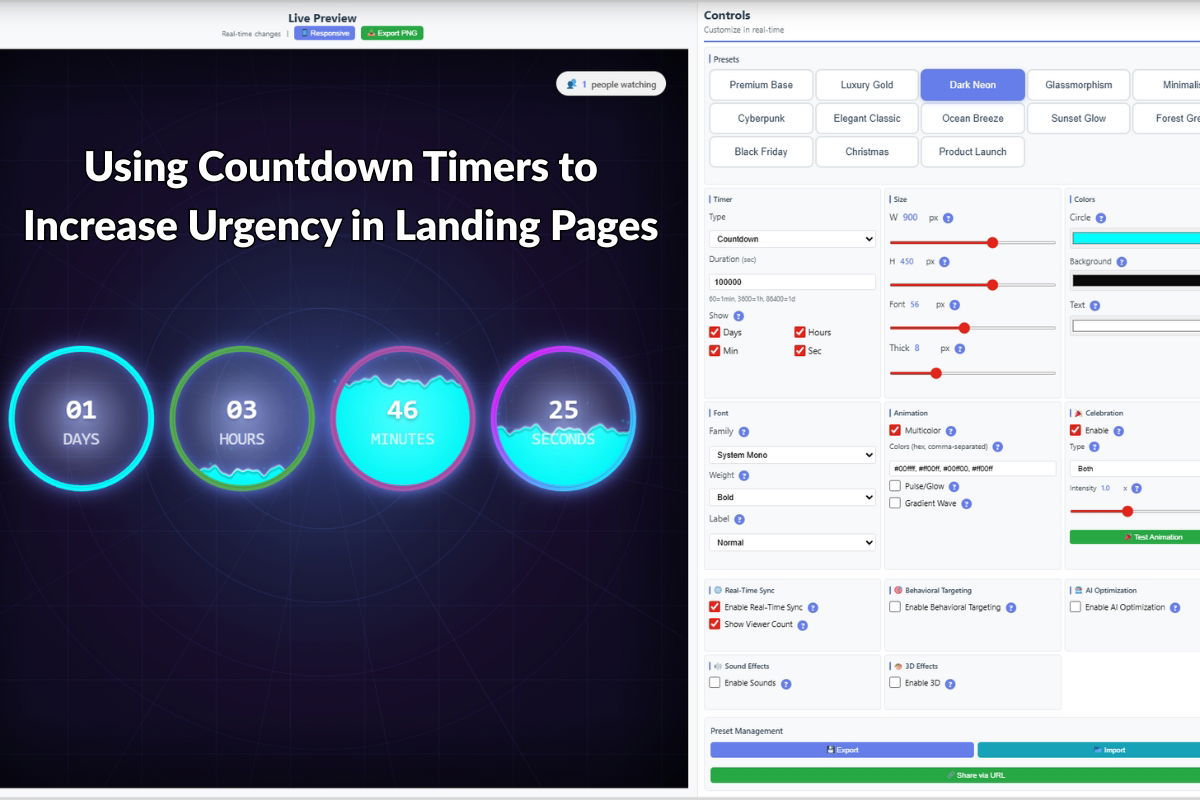
  • Using Countdown Timers to Increase Urgency in Landing Pages

    Using Countdown Timers to Increase Urgency in Landing Pages

    Using Countdown Timers to Increase Urgency in Landing Pages

    Landing pages are critical for converting visitors into customers. One of the most effective ways to increase conversions is by creating a sense of urgency through countdown timers. In this article, we’ll explore how to effectively use countdown timers on landing pages to boost conversions.

    The Psychology of Urgency

    Urgency is a powerful psychological trigger that motivates action. When visitors see a countdown timer, it triggers:

    • Decision Acceleration: Encourages faster decision-making
    • Perceived Scarcity: Creates the impression that opportunities are limited
    • Action Motivation: Reduces procrastination and increases immediate action

    Where to Place Countdown Timers on Landing Pages

    Above the Fold

    Placing a countdown timer above the fold ensures maximum visibility. Visitors see it immediately without scrolling, creating instant urgency.

    Near Call-to-Action Buttons

    Positioning timers near CTA buttons reinforces the time-sensitive nature of the offer and can increase click-through rates by up to 30%.

    In the Header or Sticky Bar

    Sticky countdown timers remain visible as users scroll, maintaining urgency throughout the page experience.

    Design Considerations

    Visual Hierarchy

    Countdown timers should be:

    • Prominent but not overwhelming
    • Visually distinct from other page elements
    • Aligned with your brand colors and style
    • Easy to read at a glance

    Color Psychology

    Choose colors that enhance urgency:

    • Red: Maximum urgency, use for critical deadlines
    • Orange: Strong urgency, good for sales and promotions
    • Blue: Trust and reliability, suitable for professional offers

    Implementation with Countdown Timer Pro

    Countdown Timer Pro makes it easy to add countdown timers to your landing pages. Here’s how:

    1. Choose Your Timer Style

    The plugin offers multiple styles:

    • Circular progress timers
    • Digital countdown displays
    • Linear progress bars
    • Custom designs

    2. Configure Settings

    Set up your timer with:

    • Target date and time
    • Custom messages
    • Completion actions (redirect, hide, show message)
    • Responsive breakpoints

    3. Integrate with Your Landing Page

    Use shortcodes, widgets, or Gutenberg blocks to add timers anywhere on your landing page. The plugin is compatible with all major page builders.

    Best Practices

    Use Real Deadlines

    Always use actual deadlines. Fake urgency damages trust and can hurt your brand reputation. Real deadlines include:

    • Sale end dates
    • Early bird pricing expiration
    • Limited-time bonus availability
    • Event registration deadlines

    Combine with Other Urgency Elements

    For maximum impact, combine countdown timers with:

    • Limited quantity messages (“Only 5 left!”)
    • Social proof (“127 people viewing this”)
    • Exclusive offers (“Members only”)
    • Bonus incentives (“Free shipping ends in…”)

    Mobile Optimization

    Ensure timers are:

    • Fully responsive
    • Readable on small screens
    • Touch-friendly
    • Fast-loading

    Advanced Strategies

    Dynamic Timer Messages

    Change messages based on time remaining:

    • Days remaining: “Sale ends in X days”
    • Hours remaining: “Only X hours left!”
    • Minutes remaining: “Final minutes – act now!”

    Multiple Timers for Different Offers

    Use multiple timers for different aspects of your offer:

    • Main sale countdown
    • Early bird pricing deadline
    • Bonus availability timer

    Measuring Effectiveness

    Track these metrics to measure timer impact:

    • Conversion rate with vs. without timer
    • Time to conversion
    • Bounce rate changes
    • Engagement metrics

    Common Pitfalls

    • Overuse: Too many timers can reduce effectiveness
    • Poor Placement: Timers hidden below the fold miss opportunities
    • Fake Urgency: Always use real deadlines
    • Ignoring Mobile: Ensure timers work perfectly on all devices

    Conclusion

    Countdown timers are a proven way to increase urgency and boost conversions on landing pages. When implemented correctly with Countdown Timer Pro, they can significantly improve your campaign performance.

    Start increasing urgency on your landing pages today. Get Countdown Timer Pro and see the difference it makes.

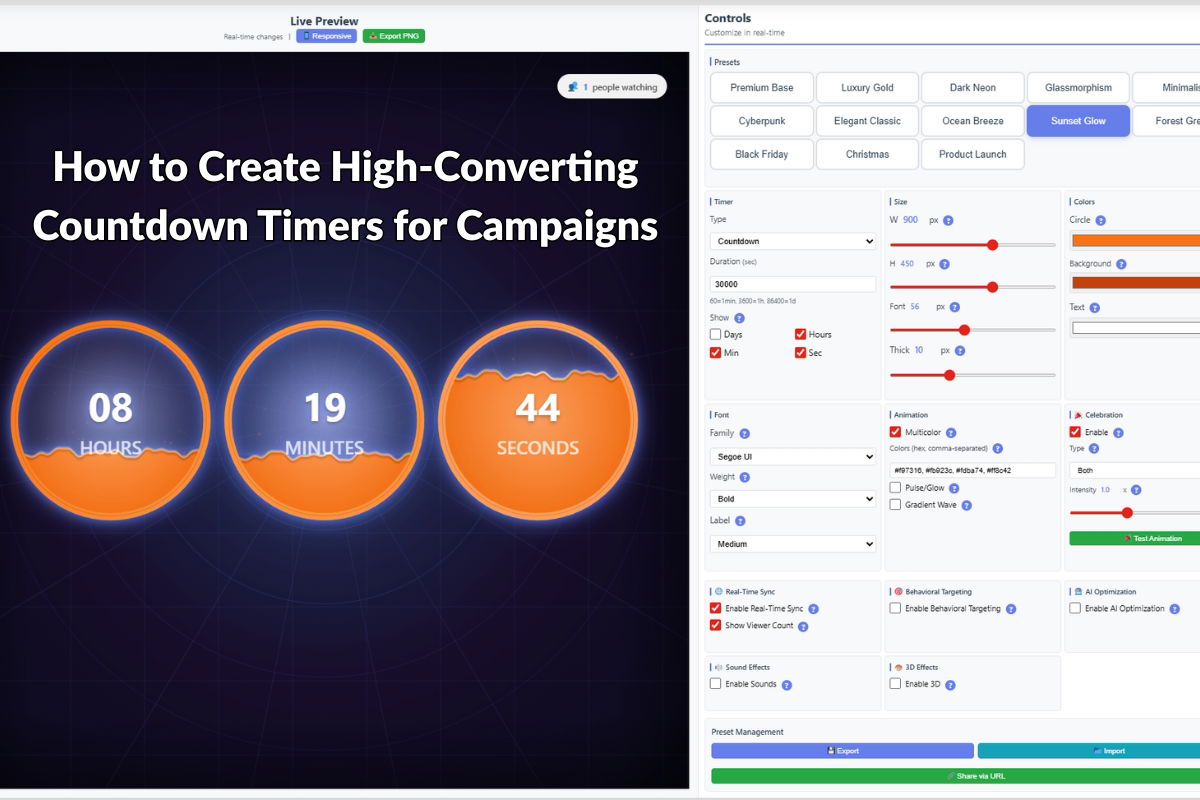
  • How to Create High-Converting Countdown Timers for Campaigns

    How to Create High-Converting Countdown Timers for Campaigns

    How to Create High-Converting Countdown Timers for Campaigns

    Countdown timers are one of the most effective tools for creating urgency and driving conversions in marketing campaigns. When used correctly, they can significantly increase sales and engagement. In this guide, we’ll show you how to create high-converting countdown timers using Countdown Timer Pro.

    Why Countdown Timers Work

    Countdown timers leverage psychological principles to drive action:

    • Scarcity: Creates a sense of limited availability
    • Urgency: Encourages immediate action
    • FOMO (Fear of Missing Out): Motivates customers to act before time runs out
    • Visual Impact: Draws attention to time-sensitive offers

    Best Practices for Countdown Timers

    1. Set Realistic Deadlines

    Effective countdown timers use real deadlines that customers can verify. Avoid fake urgency that erodes trust. Use actual:

    • Sale end dates
    • Event start times
    • Limited-time offer expiration
    • Early bird pricing deadlines

    2. Choose the Right Design

    The visual design of your countdown timer should:

    • Match your brand identity
    • Be clearly visible without being intrusive
    • Use colors that convey urgency (red, orange) or trust (blue, green)
    • Be mobile-responsive

    3. Place Timers Strategically

    Position countdown timers where they’ll have maximum impact:

    • Above the fold on landing pages
    • Near call-to-action buttons
    • In email campaigns
    • On product pages for limited-time offers

    Creating Countdown Timers with Countdown Timer Pro

    Step 1: Install and Configure

    Countdown Timer Pro offers multiple timer styles and customization options. After installation:

    1. Navigate to the timer settings in WordPress admin
    2. Choose a timer style that fits your campaign
    3. Set the target date and time
    4. Customize colors, fonts, and layout

    Step 2: Add to Your Pages

    Countdown Timer Pro provides multiple integration methods:

    • Shortcode: Add timers anywhere using simple shortcodes
    • Widget: Place timers in sidebars or widget areas
    • Gutenberg Block: Use the block editor for easy placement

    Step 3: Test and Optimize

    Before launching your campaign:

    • Test timers on different devices and browsers
    • Verify countdown accuracy
    • Check mobile responsiveness
    • Ensure timers don’t slow down page load times

    Advanced Techniques

    Multiple Timers for Different Time Zones

    For global campaigns, consider displaying different countdown times based on user location. This ensures accuracy and builds trust.

    Dynamic Messaging

    Change timer messages based on time remaining:

    • “24 hours left!” when less than a day remains
    • “Last chance!” in the final hours
    • “Extended!” if you decide to prolong the offer

    A/B Testing

    Test different timer designs and placements to find what works best for your audience:

    • Timer styles (circular, linear, digital)
    • Color schemes
    • Placement locations
    • Message copy

    Common Mistakes to Avoid

    • Fake Urgency: Don’t use countdown timers for products that aren’t actually time-limited
    • Poor Mobile Experience: Ensure timers are readable and functional on mobile devices
    • Overuse: Too many timers on a page can reduce their effectiveness
    • Ignoring Time Zones: Always account for different time zones in global campaigns

    Measuring Success

    Track these metrics to measure countdown timer effectiveness:

    • Conversion rate increase
    • Time spent on page
    • Click-through rates
    • Sales during timer-active periods

    Conclusion

    Countdown timers are a powerful tool for driving conversions when implemented correctly. Countdown Timer Pro provides all the features you need to create effective, high-converting timers for your campaigns.

    Ready to boost your campaign conversions? Get Countdown Timer Pro and start creating compelling countdown timers today.