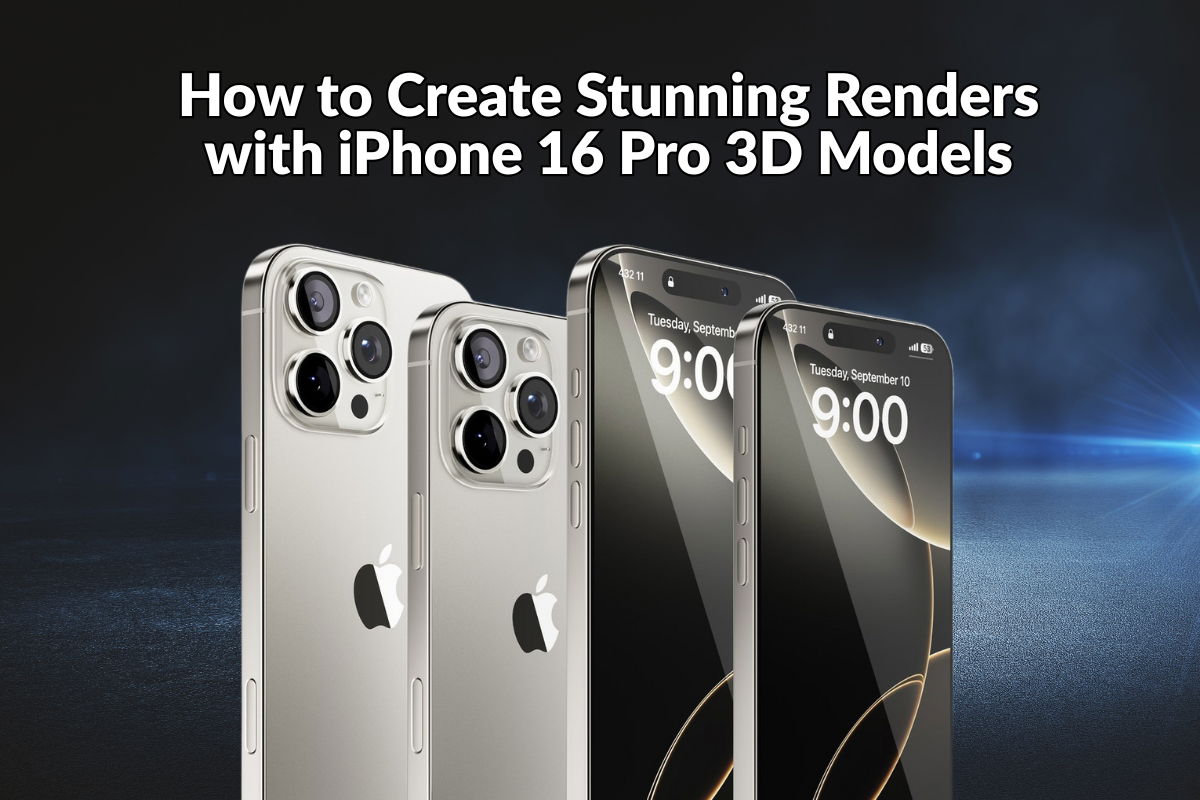
Understanding PBR Workflow for iPhone 16 Pro Models
Physically Based Rendering (PBR) is the industry standard for creating realistic materials in 3D. The iPhone 16 Pro Natural Titanium 3D models use a metallic-roughness PBR workflow, ensuring consistent and realistic results across different render engines.
PBR Material Setup
Metallic-Roughness Workflow
The iPhone 16 Pro models use the metallic-roughness PBR workflow, which includes:
- Albedo/Diffuse Map: Base color without lighting information
- Metallic Map: Defines which areas are metallic (titanium) vs non-metallic
- Roughness Map: Controls surface smoothness and reflection sharpness
- Normal Map: Adds surface detail without increasing geometry
Material Properties
For the Natural Titanium finish:
- Metallic Value: High (0.8-0.95) for titanium surfaces
- Roughness Value: Low to medium (0.1-0.3) for polished titanium
- Base Color: Neutral gray with slight warm tint
- Reflection: Strong, but not mirror-like
Cinema 4D Setup
Using Physical Material
In Cinema 4D, use the Physical material for best results:
- Create a new Physical material
- Load the Albedo texture into the Color channel
- Set the Metallic value based on the metallic map
- Load the Roughness map into the Roughness channel
- Add the Normal map to the Normal channel
- Adjust the Index of Refraction (IOR) for titanium (around 2.4)
Redshift Material Setup
For Redshift users in Cinema 4D:
- Use the Redshift Material (RS Material)
- Set Material Type to “Metal”
- Load textures into appropriate channels
- Enable Fresnel reflections for realistic results
Blender Setup
Principled BSDF Shader
Blender’s Principled BSDF shader is perfect for PBR materials:
- Select the iPhone 16 Pro mesh
- In the Shader Editor, use Principled BSDF
- Connect the Albedo texture to Base Color
- Set Metallic to 0.9 (or use metallic map)
- Connect Roughness map to Roughness input
- Add Normal map to Normal input
Material Settings
Optimize your Blender material:
- Enable “Use Nodes” in material properties
- Set Material Output Surface to Principled BSDF
- Use Image Texture nodes for all maps
- Set Color Space to “sRGB” for color maps, “Non-Color” for data maps
3ds Max Setup
Physical Material Configuration
In 3ds Max, use the Physical Material:
- Create a new Physical Material
- Set Material Type to “Metal”
- Load Albedo into Base Color
- Set Metallic to 1.0 (or use map)
- Load Roughness map into Roughness slot
- Add Normal map to Bump slot
Lighting for Natural Titanium
Studio Lighting
For product shots, use a professional lighting setup:
- Key Light: Soft area light at 45° angle
- Fill Light: Softer light opposite key light
- Rim Light: Backlight to separate from background
- Reflection Cards: White cards to add controlled reflections
HDRI Environment
HDRI lighting provides realistic reflections:
- Use high-quality HDRI environment maps
- Rotate the HDRI to control reflection placement
- Combine with area lights for additional control
- Adjust HDRI intensity to balance with direct lights
Camera and Composition
Camera Settings
Optimize your camera for product photography:
- Use 50-85mm focal length for natural perspective
- Enable depth of field for selective focus
- Set aperture to f/2.8-f/5.6 for balanced depth
- Position camera slightly above the iPhone
Composition Guidelines
- Follow rule of thirds for balanced layouts
- Use negative space to emphasize the product
- Consider multiple angles: front, back, side, detail
- Maintain consistent lighting across all shots
Rendering Settings
Cinema 4D
For Physical Renderer or Redshift:
- Set samples to 128-256 for production
- Enable Global Illumination
- Use denoising for cleaner results
- Render at 4K resolution for maximum detail
Blender Cycles
For Cycles rendering:
- Set samples to 256-512
- Enable Denoising in Render Properties
- Use Filmic color management
- Enable Caustics for realistic light behavior
Post-Processing Tips
Enhance your renders in post-production:
- Adjust contrast and brightness subtly
- Add slight color grading to match brand
- Sharpen details without over-processing
- Remove any minor artifacts or noise
- Consider adding subtle lens effects
Common Issues and Solutions
Overly Reflective Surface
If the titanium appears too mirror-like:
- Increase roughness value slightly
- Add subtle imperfections to the roughness map
- Use environment maps with softer lighting
Lack of Detail
If the model appears flat:
- Ensure normal maps are properly loaded
- Check that normal map strength is appropriate
- Add additional lighting to reveal surface detail
Resources
Get started with iPhone 16 Pro Natural Titanium 3D models by visiting our product page. View the live Sketchfab preview and download the models in your preferred format.
Explore our complete 3D Models collection or browse on 3D Ocean.
Conclusion
Mastering the PBR workflow for iPhone 16 Pro 3D models enables you to create stunning, photorealistic renders. By understanding material setup, lighting techniques, and rendering best practices, you can produce professional-quality visualizations that showcase the Natural Titanium finish beautifully.